
Hosting a website might sound like a deeply technical, coder-only kind of task—but here’s the truth: it’s a lot simpler than most people think. If you’ve ever uploaded photos to Google Drive or shared files on Dropbox, you already understand the basic concept behind web hosting.
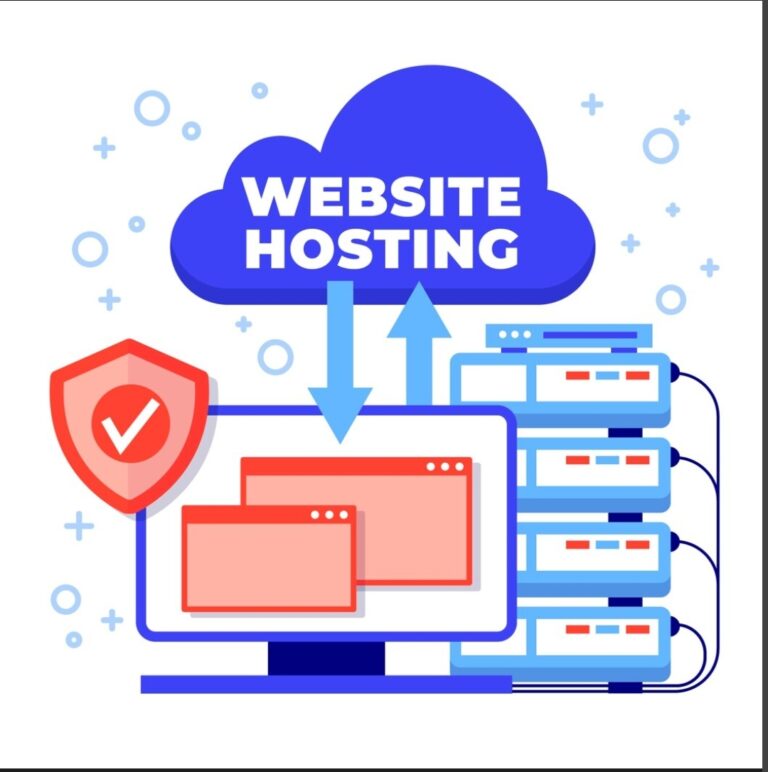
Hosting is simply about storing your website’s files in a safe location and making them accessible to anyone on the internet, at any time, from anywhere.
In this guide, we’ll break down how to host your website in 5 simple steps, using real-life analogies and practical guidance. By the end, you’ll not only know how to host a website, but you’ll understand why each step matters.
Step 1: Choose the right type of web hosting
Choosing the right web hosting type is like selecting the right vehicle. You wouldn’t buy a bus just to commute alone, and you wouldn’t use a bicycle to move furniture. The same logic applies to web hosting.
There are several types of hosting available, and each serves a different purpose.
Shared hosting
Shared hosting is the most beginner-friendly option. Your website shares server resources—like memory and processing power—with other websites. It’s affordable, easy to manage, and perfect for small websites, blogs, and portfolios.
VPS hosting
VPS (Virtual Private Server) hosting gives you a dedicated portion of a server. You still share the physical machine, but you get guaranteed resources.
Dedicated hosting
Dedicated hosting means the entire server is yours. No sharing. Full control. This option is best for large businesses and high-traffic websites.
Cloud hosting
Cloud hosting uses multiple servers instead of just one. If one server fails, another takes over. Cloud hosting is flexible, modern, and ideal for growing websites.
Now that you’ve seen the various types of web hosting, ask yourself:
- How much traffic do I expect?
- What’s my budget?
- Do I need advanced features?
For beginners, shared hosting or cloud hosting is usually the best place to start.
Step 2: Select a reliable web hosting provider
Once you know the type of hosting you need, the next step is choosing who will host your website. This decision matters more than most people realize.
When evaluating hosting providers, don’t just look at flashy discounts. Focus on long-term value.
Key features to look for in a hosting provider
- 99.9% uptime guarantee
- Fast server speed
- Free SSL certificate
- Daily backups
- User-friendly control panel
- Quality performance
- SSD storage
- Customer support and technical assistance
- Pricing, renewal costs, and hidden fees
Speed matters because slow websites lose visitors. Security matters because cyber threats are real. Backups matter because mistakes happen. Meanwhile, Tiwahost got you covered and has all the features listed above.
Step 3: Register and connect a domain name
Now that you’ve chosen your hosting provider, it’s time to give your website its identity. This is where your domain name comes into play.
If hosting is the land where your website lives, the domain name is the address people type to find it. Without a domain, visitors would have to remember a long string of numbers (an IP address), and let’s be honest—nobody does that.
A domain name makes your website memorable, trustworthy, and professional. It’s often the first impression people have of your brand, so this step deserves thoughtful attention.
What is a domain name and why it matters
A domain name is your website’s unique name on the internet, such as yourwebsite.com. It points users to your hosting server, where your website files are stored. Behind the scenes, the domain connects to your hosting account using DNS (Domain Name System) records.
Why does it matter so much?
- It builds brand recognition
- It improves credibility and trust
- It affects SEO and click-through rates
- It’s easier to remember and share
How to choose the perfect domain name
Here are some practical tips that actually work:
- Keep it short and simple
- Avoid numbers and hyphens
- Use keywords if possible (without forcing them)
- Choose a popular extension like .com, .net, or .org
- Make sure it’s easy to spell and pronounce
If you’re building a personal brand, using your name can be powerful. If it’s a business, focus on clarity over creativity. A clever name that confuses people won’t help you.
How to register a domain name
You can register a domain through:
- A domain registrar
- Your hosting provider (often free for the first year)
Registration usually takes just a few minutes:
- Search for your desired domain
- Choose an available extension
- Complete the purchase
- Verify ownership
Once registered, the domain is officially yours—as long as you renew it annually.
How to connect a domain name to the web hosting server
If your domain and hosting are with the same provider, this step is often automatic. If not, you’ll need to update your domain’s nameservers to point to your hosting server.
This process sounds technical, but it’s usually just copying and pasting two lines provided by your host. Changes may take a few hours to fully propagate across the internet.
Once connected, your domain is now linked to your hosting space, and your website finally has an address.
Step 4: Upload and set up your website
This is the step where your website starts to feel real. You’ve secured hosting. You’ve claimed a domain. Now it’s time to move your website files onto the server so people can actually see something when they visit your domain.
There are multiple ways to upload and set up your website, and the best option depends on how you built it.
Using File Manager vs FTP
Most hosting providers offer a File Manager inside their control panel. It’s browser-based and beginner-friendly.
Pros:
- No extra software required
- Easy drag-and-drop interface
- Great for small websites
FTP (File Transfer Protocol) uses tools like FileZilla to transfer files from your computer to the server.
Pros:
- Faster for large websites
- More reliable for bulk uploads
- Preferred by developers
Both methods achieve the same result: getting your website files into the server’s public directory, usually called public_html.
Installing a Content Management System (CMS)
If you’re using a CMS like WordPress (which powers over 40% of the web), you’re in luck. Most hosting providers offer one-click installation.
With a few clicks, you can:
- Install WordPress
- Set up a database
- Create admin login credentials
No coding. No headaches.
A CMS allows you to manage content, install themes, add plugins, and update your site without touching code. It’s like having a control dashboard for your website.
Manual website upload process
If your website is custom-built:
- Compress your website files
- Upload them to public_html
- Extract files
- Ensure index.html or index.php exists
This tells the server what page to load first.
Step 5: Test, Secure, and Launch Your Website
You’re almost there. But before announcing your website to the world, it’s crucial to test everything thoroughly.
Test website performance and functionality
Check:
- Page loading speed
- Mobile responsiveness
- Broken links
- Form submissions
- Browser compatibility
Use your website as a visitor would. Click everything. If something feels confusing or slow, fix it now—not after launch.
Enable SSL and website security
An SSL certificate encrypts data between your website and visitors. It also enables HTTPS, which is essential for SEO and trust.
Most hosting providers offer free SSL certificates. Activate it from your control panel and force HTTPS redirection.
Additional security steps:
- Strong passwords
- Two-factor authentication
- Security plugins
- Regular updates
Security isn’t optional. It’s fundamental.
Final checklist before going live
Before launch, confirm:
- Domain resolves correctly
- SSL is active
- Pages load properly
- Backup is configured
- Analytics is installed
Once everything checks out, hit publish. Your website is officially live.
Take a moment to celebrate. You just hosted your website from scratch.
Common mistakes to avoid when hosting a website
Even simple processes come with pitfalls. Here are mistakes beginners often make:
- Choosing the cheapest host without research
- Ignoring renewal prices
- Forgetting backups
- Skipping security setup
- Not testing before launch
Avoiding these mistakes saves time, money, and frustration.
Tips to optimize website performance after hosting
Hosting is just the beginning. Optimization keeps your site fast and competitive.
- Use caching
- Optimize images
- Enable a CDN
- Minimize plugins
- Monitor uptime and speed
Conclusion
Hosting your website doesn’t have to feel overwhelming. When broken down into clear, manageable steps, it becomes a straightforward process that anyone can handle. From choosing the right web hosting type to connecting your domain, uploading files, and securing your site, you now have a complete roadmap.
Now that you know how to host your website in 5 simple steps, the only thing left to do is take action. Start hosting with Tiwahost today!
FAQs
How much does it cost to host a website?
Website hosting can cost anywhere from a few dollars per month to hundreds, depending on the hosting type and features.
Can I host a website without technical skills?
Yes. Modern hosting providers offer user-friendly tools and one-click installations that require no coding knowledge.
How long does it take to host a website?
You can host a basic website in under an hour, including domain setup and file upload.